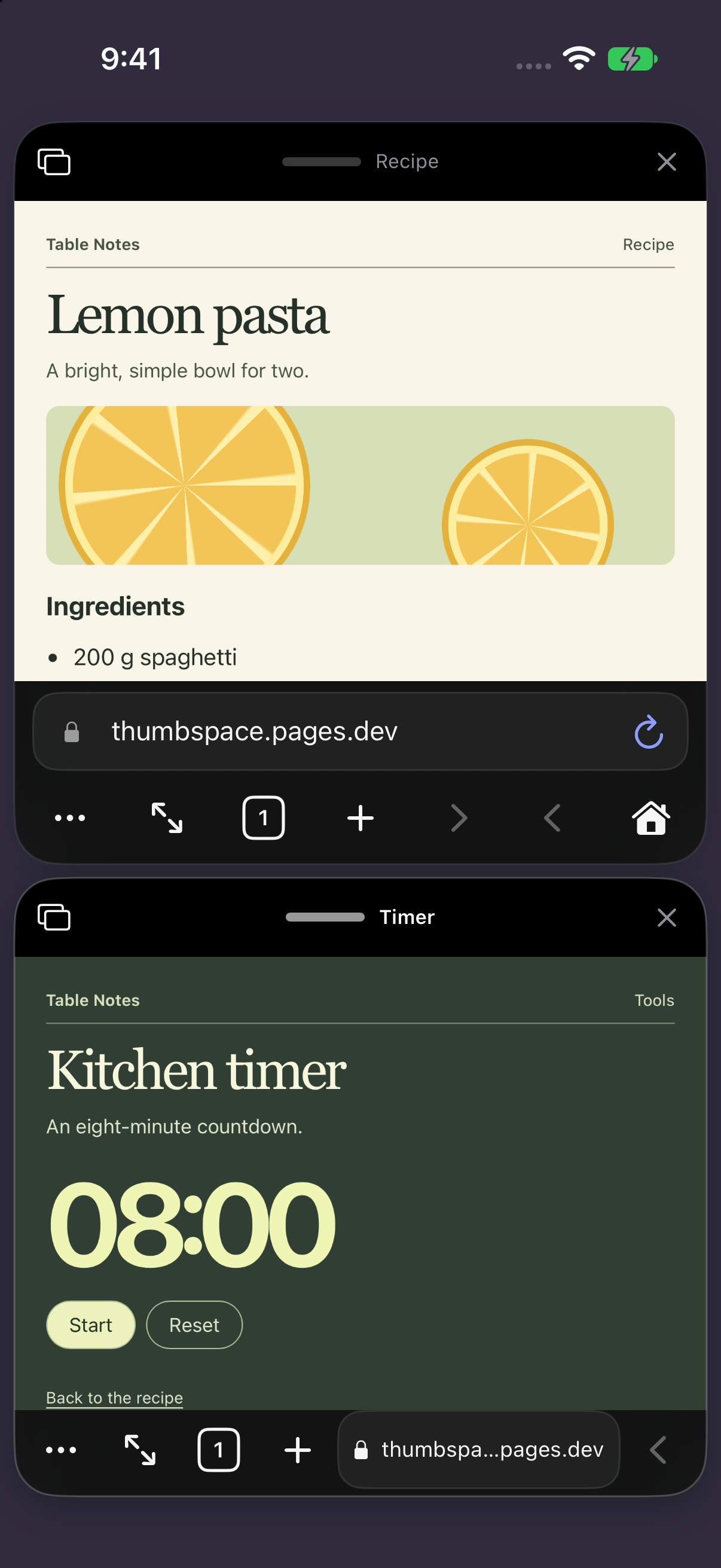
Cook with the timer in view.
Read the next step of the lemon pasta recipe while the timer stays in sight. Both pages have their own controls.
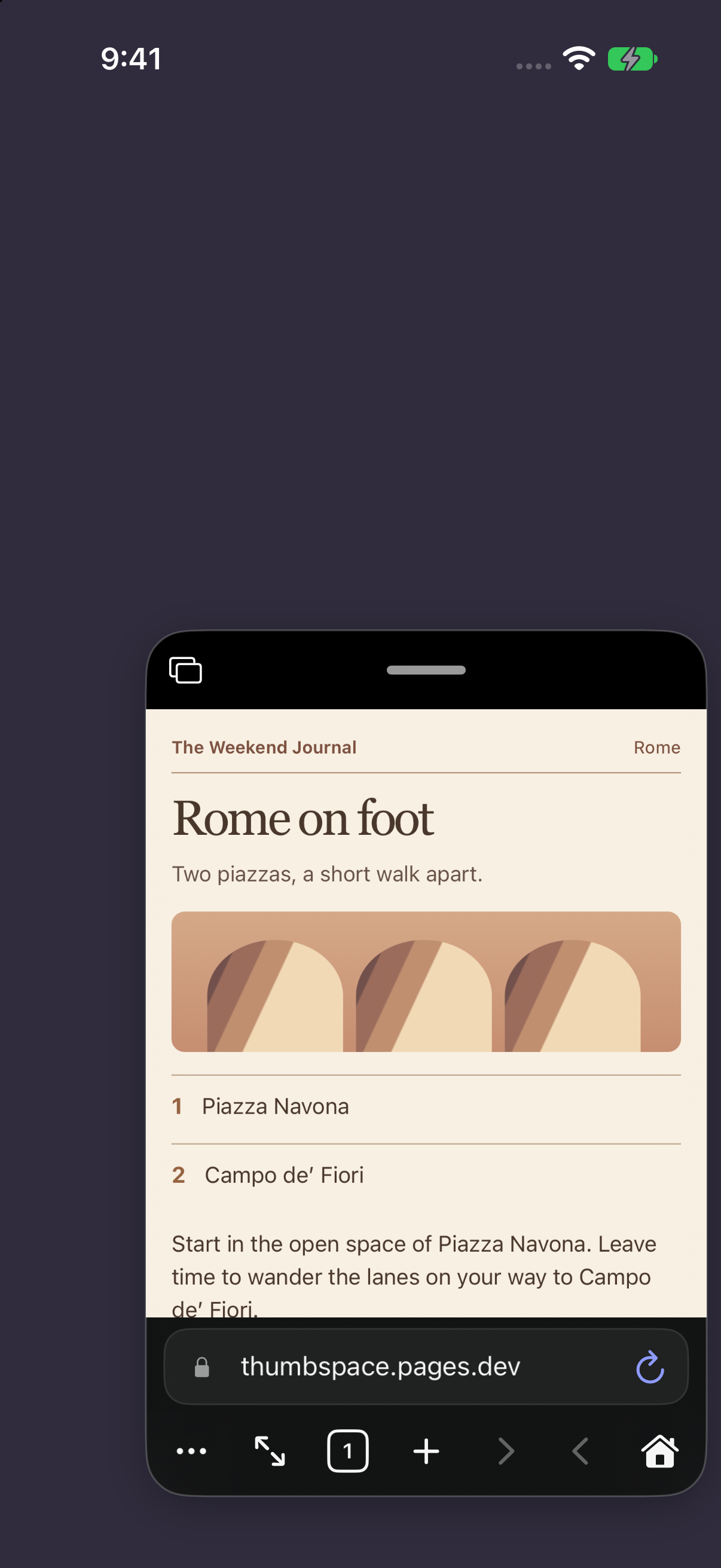
Open the sample recipeHolding the rail with one hand? Pull your city guide into the lower corner of your iPhone so the next stop is within reach of your thumb.
Requires iOS 17 or iPadOS 17 or later.
In Productivity mode, you can stack workspaces on iPhone or spread them across your iPad. Each one keeps its own tabs.
Read the next step of the lemon pasta recipe while the timer stays in sight. Both pages have their own controls.
Open the sample recipe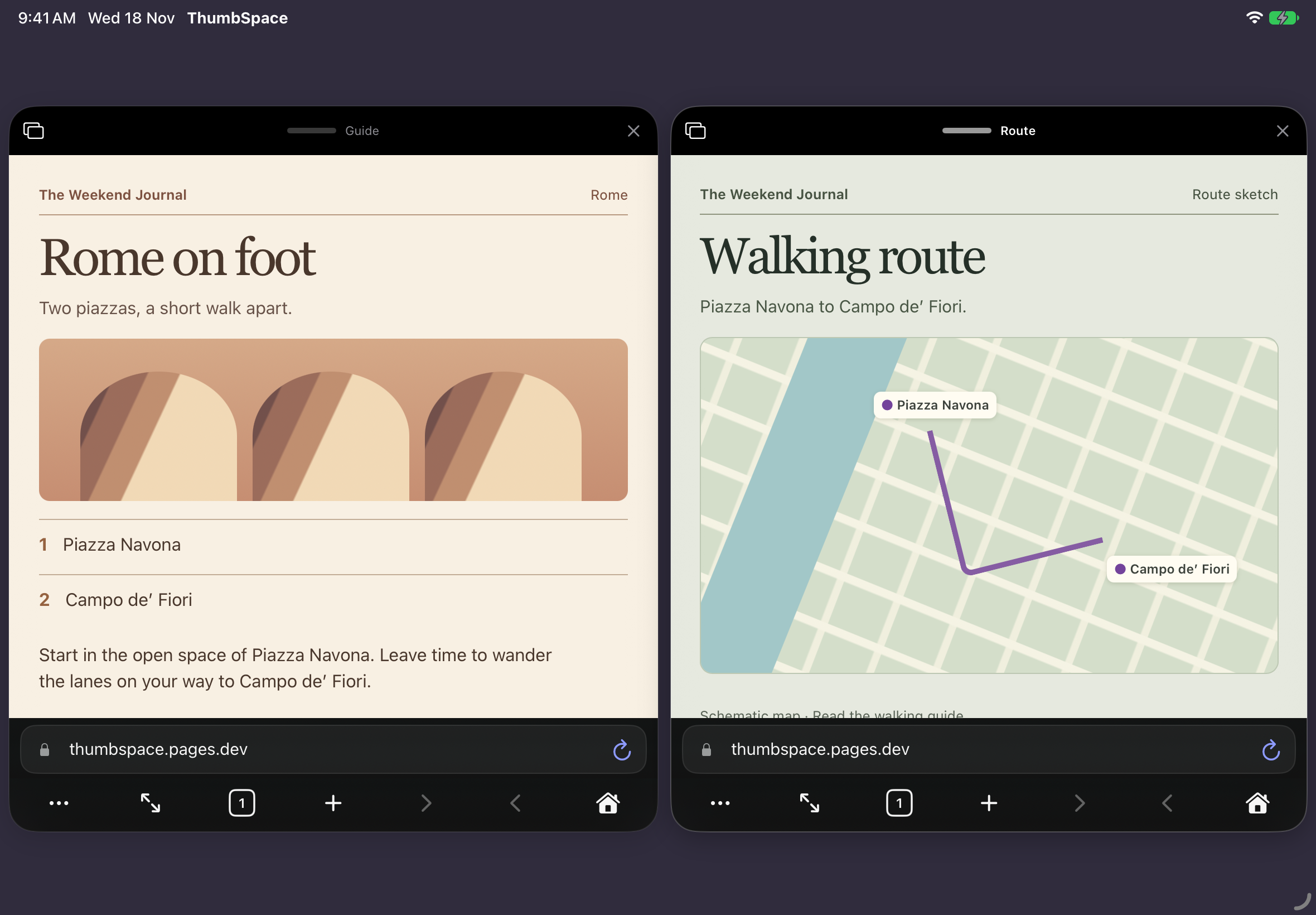
Put a city guide beside your route. Give the guide more space while you read, then widen the map when it’s time to find the next turn.
Open the walking guideScreenshots from ThumbSpace 1.19.0 running on iPhone and iPad simulators with sample webpages.
Try it with these two sample pages. Give the guide more space, focus on it full screen, then bring the map back.
Walk the lanes between two piazzas.
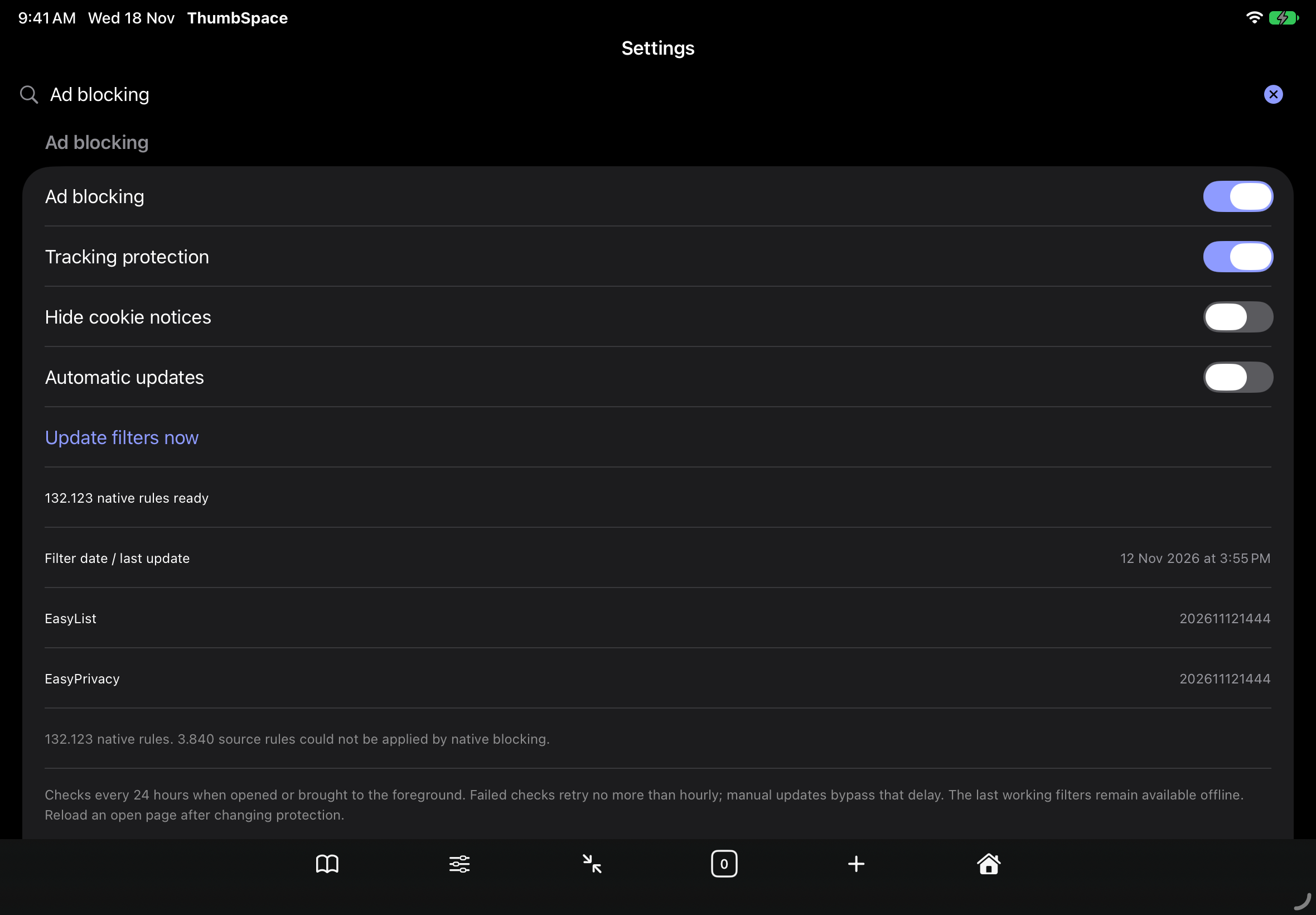
ThumbSpace filters known ads and trackers as pages load. EasyList and EasyPrivacy are on by default, and you can make exceptions for individual sites.
On iPad, these shortcuts act on the workspace you’re using.
On iPadOS 18.4 or later, Command-click or middle-click a link to open it in a background tab.
Switch to Productivity mode with the expand or shrink button in the bottom bar. Drag the workspace by its top handle until the page is under your thumb. Drag an edge or corner to change its size.
Each workspace has its own tabs. Normal workspaces share website sign-ins, bookmarks and history. You can move a tab to another workspace from its tab menu.
Private tabs use temporary website storage. Their pages stay out of saved history and session restoration. You can also lock private tabs when you leave the app. Read the privacy policy.
Open Reader on a supported article and save its text for later. You can also change the text size or have the article read aloud.
Open the ThumbSpace invitation on an iPhone or iPad running version 17 or later. Apple’s invitation walks you through installing TestFlight and the beta. You can browse without a ThumbSpace account.
Found a bug or have an idea? Open ThumbSpace in TestFlight and choose Send Beta Feedback.